Using this Tutorial
- Click Back
 and Next and Next  at the top or bottom of each page to navigate through the tutorial. at the top or bottom of each page to navigate through the tutorial.
- Carefully read all of the content on each page and perform the given steps before proceeding to the next step.
- In several cases, you may have to 'scroll down' on the tutorial page before continuing.
- You can navigate back to the starting page by using the Home
 icon on any page. icon on any page.
- From the Home page, you can use the links provided to jump to a particular exercise.
- You will see various icons throughout the tutorial:
 Information is provided at the start of most tasks. Information is provided at the start of most tasks.
 Tips are provided along the way. Tips are provided along the way.
 Notes are provided as additional information. Notes are provided as additional information.
- There are several conventions used in this tutorial:
- The "picks and clicks" are shown in Bold.
- Text that you enter is shown in Bold.
- Icons and their names are shown inline with the text.
- Names of models are shown in CAPS.
- Keyboard keys are shown in CAPS.
- You can adjust the font size of this tutorial using either of two methods:
- By clicking View > Text Size from the Internet Explorer window.
- By pressing CTRL and rolling the mouse wheel.
- Positioning the Tutorial and Pro/ENGINEER Wildfire 3.0 windows:
- Resize the tutorial to approximately 3" wide.
- Resize the Pro/ENGINEER Wildfire 3.0 window to approximately 3" narrower than the default.
- Position the tutorial on the left of the Pro/ENGINEER Wildfire 3.0 window as shown in the following figure. This will allow you to easily view the tutorial window while working.
- It is recommended that you maximize the amount of working area on your screen by setting your monitor to the highest resolution setting, for example 1600x1200.
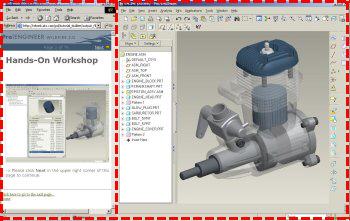
Positioning Tutorial Window | |
