| Task 5-5. (OPTIONAL) Re-check the Interference on the top level assembly. |
- Select the Folder Browser
 , and select the ProE_models folder. , and select the ProE_models folder.
- Select the AC‑40.ASM in the browser to view its preview.
- Click Open in Pro/E
 . .
- Expand the BLOWER.ASM in the model tree and select the IMPELLER.PRT to reveal its location in the model.
- Click Drag Component
 from the main toolbar. from the main toolbar.
- Select any blade on the impeller and drag the mechanism.
- Middle-click when finished dragging, and click Close from the Drag dialog.
- Run the mechanism and view any interference, as shown in the following figure:
- Click Applications > Mechanism from the main menu.
- Expand the ANALYSES branch of the mechanism tree (lower left of the screen) by clicking the '+'.
- Select the existing RUN_ENGINE analysis, then right-click and select Run.
- Click Play Results
 from the Mechanism Toolbar. from the Mechanism Toolbar.
- Click Collison Detection Settings, select Global Collision Detection and click OK.
- Cclick Play Results from the Playbacks dialog box. (The interference will take a few seconds to calculate).
- Drag the Speed slider to the far right, and click Play
 from the Animate dialog box. from the Animate dialog box.
- Notice no interference is present.
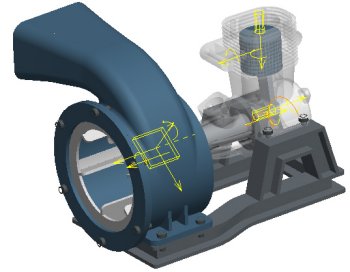
No Interference Detected |
- Click Stop
 when finished viewing the animation, and then click Close > Close. when finished viewing the animation, and then click Close > Close.
- Click Applications > Standard from the main menu.
- Click Yes from the message window.
- Click Save
 and then click OK. and then click OK.
 |
|
|
Saving the top level assembly saves all the components in that assembly. |
|
This completes the fifth exercise. |



