| Task 5-4. View the effects on the drawing, and modify the CONNECTING_ROD length back to its original value. |
 |
|
|
IMPORTANT- In the next step, you will be opening another Pro/ENGINEER window. You must resize and reposition the window to the right of the tutorial. |
|
- Select the Folder Browser
 , and select the ProE_models folder. , and select the ProE_models folder.
- Select the ENGINE_COMPONENTS.DRW in the browser to view its preview.
- Click Next Sheet
 , then click Open in Pro/E , then click Open in Pro/E  . .
- Notice the drawing opens directly to Sheet 2.
- Place the cursor between the FRONT and TOP views.
- Press CTRL, press and hold the middle mouse button, and move the mouse towards you to zoom in on the views.
- Notice that the drawing views and the dimensions have updated to the new length of 30.
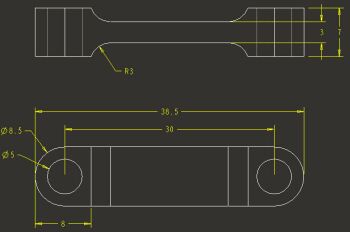
Updated Drawing |
- Select the 30 dimension. Then double-click on the 30 value, type 33, and press ENTER.
- Click Regenerate
 from the main toolbar. from the main toolbar.
- Notice that the drawing views and the dimensions update.
- Click Window > CONNECTING_ROD_COMPLETE.PRT to view the part.
- Double-click on the main body of the model to view the dimensions for EXTRUDE 1.
- Notice the feature has updated to the latest value of 33.
-
Click File > Close Window  as necessary to close all windows. |



