 |
|
|
Running a Mechanism Playback
Once a Mechanism Analysis has been run, you can use the Replay Analysis option to 'animate' the mechanism in a continuous loop. You can also use the Global Interference option to check for any interference between components while viewing the playback. |
|
| Task 5-3. Run the mechanism playback to view the interference created by shortening the CONNECTING_ROD. |
- Click Applications > Mechanism from the main menu.
- Expand the ANALYSES branch of the mechanism tree (lower left of the screen) by clicking the '+'.
- Select the existing RUN_ENGINE analysis, then right-click and select Run.
- Select the PLAYBACKS branch of the mechanism tree, then right-click and select Play.
- Select Collision Detection Settings, click Global Collision Detection, and click OK.
- Click Play Results
 from the Playbacks dialog box. (The interference will take a few seconds to calculate). from the Playbacks dialog box. (The interference will take a few seconds to calculate).
- When the Animate dialog appears, drag the Speed slider to the far right, and click Play
 . .
- Notice that interference is present (red highlighting) during the bottom of the stroke.
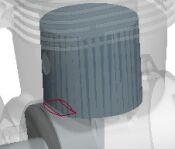 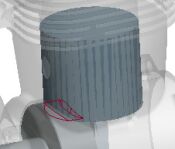
Interference Detected |
- Click Stop
 when finished viewing the interference, and then click Close > Close. when finished viewing the interference, and then click Close > Close.
- Click Drag Component
 from the main toolbar. from the main toolbar.
- Click Snapshots to expand the dialog.
- Double-click on Snaphot1 and click Close.
- Click Applications > Standard from the main menu, and click Yes from the message window.
- Click File > Close Window
 to return to the CONNECTING_ROD part. to return to the CONNECTING_ROD part. |



