68/76 
 
 
Information

Creating Dimensions

You can use the Create Dimension option to create a dimension on the drawing for geometry that doesn't already have a dimension.

This type of created dimension is often referred to as a Driven dimension, since it is driven by the geometry and will update to changes, but cannot be modified directly.


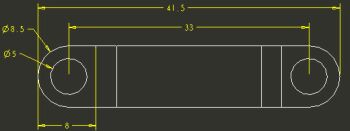
Task 4-12. Create a dimension for the overall length of the CONNECTING_ROD.

  1. Click Create Dimension from the drawing toolbar (top of the screen).
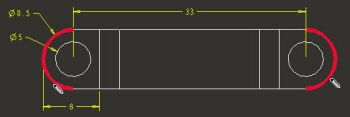
    • Select the edges shown in the following figure.


Selecting Edges

  1. Middle-click above the 33 dimension to place the dimension.
    • Click Tangent > Tangent > Horizontal > Return from the menu manager (right of the screen).


Driven Dimension Created

  1. Select the FRONT view, right-click and select Cleanup Dimensions.
    • Click Apply > Close. Notice the created dimension is spaced accordingly.
  2. Click Refit from the main toolbar.
  3. Click Save and then click OK.
  4. Click File > Close Window .

This completes the fourth exercise.