 |
|
|
Manipulating Dimensions
Once dimensions are shown and cleaned up, you can further manipulate them. When a dimension is selected, several handles appear:
- Handle in center of text- Move Dimension.
- Handles on either side of text- Move Dimension Text.
- Handles at the ends of the witness lines-Clip Witness Lines.
Several additional dimension editing options are available by selecting dimension(s), and using the right-click popup menu. |
|
| Task 4-11. Manipulate dimensions in the FRONT and TOP views. |
- Place the cursor between the FRONT and TOP views.
- Press CTRL, press and hold the middle mouse button, and move the mouse towards you to zoom in on the views.
- Manipulate the dimensions as shown in the following figure:
- Select the diameter 8.5 dimension, right-click and select Flip Arrows.
- Select the diameter 5 dimension, right-click and select Flip Arrows. Then drag the dimension to position as shown. Drag the handle next to the dimension text to move the text to the left of the leader.
- Select the 8 dimension. Click and drag the handles at the end of the witness lines to position them as shown.
- Select the radius 3 dimension. Drag the dimension to position as shown. If necessary, drag the handle next to the dimension text to move the text to the right of the leader.
- Select the 7 dimension. Click and drag the handles at the end of the witness lines to position them as shown.
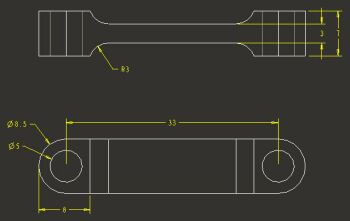
Dimensions Repositioned | |



