30/76 
 
 
Information

Results of Internal Sketch and Embedded Datum

The datum plane and sketch have been automatically structured within the branch of the Extrude 2 feature in the model tree.  These features are also automatically Hidden, so they will not clutter up the display.  Hidden features are shown 'grayed-out' in the model tree.


Task 2-11. Examine the internal sketch and embedded datum features.

  1. Click Datum Planes  from the main toolbar to disable their display.
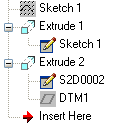
  2. Locate Extrude 2  in the Model Tree.
    • Click on the '+' to the left of Extrude 1 and Extrude 2 to expand them.
    • Notice that the Extrude 2 cut feature contains the internal sketch (S2D0002) and the datum plane (DTM1) within its branch.
    • Notice how the structure for Extrude 2 (internal sketch) differs from Extrude 1 (external sketch).  Extrude 1 contains a link to the Sketch 1 feature that was created before it.


Model Tree

Note
Your internal sketch may be labeled S2D0001 or S2D0003 instead or S2D0002, this is OK.

  1. Select Extrude 2 from the model tree.
    • Right click and hold, and select Edit.
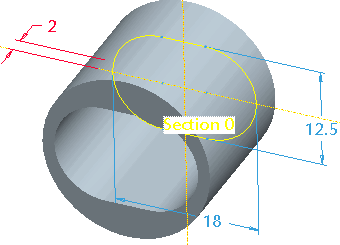
    • Notice that the dimensions from the internal sketch and embedded datum plane are shown.


Dimensions Displayed

Note
The internal sketch and embedded datum technique allowed us to create the feature with the desired dimension scheme:  The depth of the cut is controlled by an offset value from the top of the piston, rather that the depth of the cut directly.