60/76 
 
 
Information

Creating Drawings 

A Drawing allows you to place 2D and 3D views of a part or assembly model on 2D drawing sheets for manufacturing purposes.

You can rapidly create drawings by using a Drawing Template.  A Drawing Template has pre-configured view locations, and can contain a format with a title block.

The template used in this exercise could be used on a variety of different assemblies with similar results.


Task 4-4. Create a drawing of the ENGINE_COMPLETE assembly using a template.

  1. Click File > Close Window .
  2. Click New and select Drawing as the Type.
    • Type ENGINE_COMPONENTS as the Name and press ENTER.
    • Notice that the ENGINE_COMPLETE.ASM is used as the Default Model, and that drawing_template is the current template.
    • Click OK from the New Drawing dialog box.
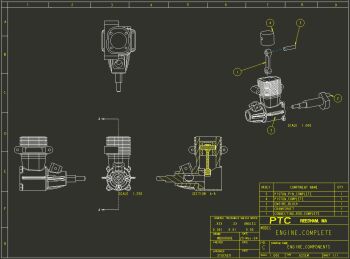
  3. Enter parameter information to create the drawing as shown in the following figure:
    • Type YOUR NAME at the prompt and press ENTER.
    • The new drawing is created, which uses the template to place 4 isometric views, an exploded view, a title block, and a bill of materials.
    • Double-click the date cell in the title block to the right of your name and enter &todays_date.
    • Click OK from the Note Properties dialog box.

Note
The '&todays_date' syntax uses a system parameter to display the date.


 Drawing Created