Applying Color to Models
You can use the Color and Appearance dialog box to create and apply colors for models. In this case, a basic color palette has been pre-loaded.
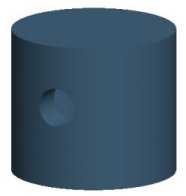
Completed PISTON



 from the main toolbar to disable their display.
 from the main toolbar and click OK.
 .
.