 |
|
|
Sketching Arcs
The Arc tool can create both 3-point and tangent-end arcs. In this task, we will be creating a Tangent Arc. |
|
| Task 2-8. Continue the sketch to create an oval shape. Begin by sketching tangent arcs using the rectangle as a guide. |
-
Sketch two arcs as shown in the following figure:
- Click Arc
 from the sketcher toolbar (right of the screen). from the sketcher toolbar (right of the screen).
- Click and release on the upper right vertex of the rectangle to start the arc.
- Move the cursor rightward out of the green quadrant symbol to continue the arc.
- Click and release on the lower right vertex of the rectangle to complete the arc.
- With Arc still depressed, sketch a similar arc on the left of the rectangle.
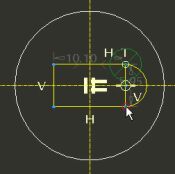 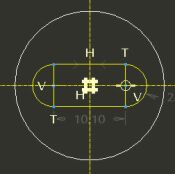
Sketching Tangent Arcs |
|
|
|
Always use a 'click-and-release', 'click-and-release' technique when sketching geometry, as opposed to holding down the left mouse button and 'dragging'. |
|
- Middle-click to stop sketching and to allow items to be selected.
- Notice that Select Items
 is now depressed in the sketcher toolbar. is now depressed in the sketcher toolbar.
- Press CTRL and select the two vertical lines.
- Right-click and hold, then and select Delete.
|



