Using the Extrude Tool
The Extrude tool allows you to take a sketch and linearly extrude it to create a feature.
You can add material (protrusion) or remove material (cut) when using the Extrude tool.



 from the feature toolbar (right of the screen).
 in the dashboard (bottom of the screen) and select Both Sides
  .
.
 from the main toolbar (top of the screen).
 from the dashboard (bottom of the screen).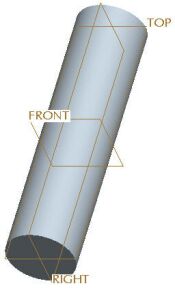
 from the main toolbar and click OK.
 .
.