15/76 
 
 
Information

Edit Definition and Drag Handles

The Edit Definition option opens the dashboard for that feature, where any desired changes to a feature can be made. 

A 'right-click and hold' technique is used to access popup menus, whereas a quick 'right-click and release' will pre-highlight the next feature beneath the cursor.

Drag handles are small white squares located on the yellow feature preview.


Task 1-4. Edit the definition of the mounting flange (EXTRUDE_2) to make it thicker.

  1. With EXTRUDE_2 still selected, right-click and hold, and then select Edit Definition.
    • Notice that features created after this extrude are not shown during redefinition.
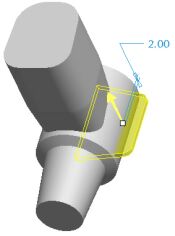
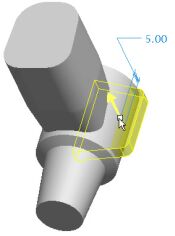
  2. Drag the depth handle on the model (white square on the yellow preview) from 2 to 5, as shown in the following figure.
    • Notice the depth value has updated to 5.00 in the dashboard (bottom of the screen).

Redefining a feature

  1. Click Complete Feature from the right of the dashboard (bottom of the screen).
    • The model will take a few moments to regenerate the many features that come after the extrude we redefined.
    • Notice that this change has also affected the opposite side, due to the existing Parent/Child relationships.