Exercise 2 - Creating Basic Machining Features

In this exercise we will create some of the basic machining features available in CAM Lite.

Retrieve  in Pro/ENGINEER the XM1.mfg model created in exercise 1.

 Creating a Face Feature

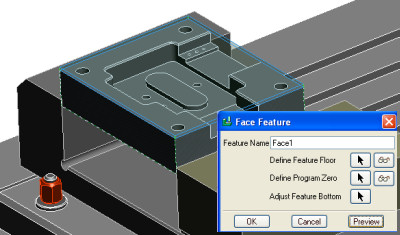
The purpose of the face feature is to establish the top of the part with respect to the spindle orientation (the coordinating system that is active at the time of the feature operation) for the current operation.
A face consists of a hard floor and a single closed loop of soft wall.

    • Choose the Face icon   or NC Create / Features / face
    • Select one of the top faces as the reference model (notice that you can select geometry tools only from reference model)
    • Select Done/ Return to come back to the Face Feature dialog
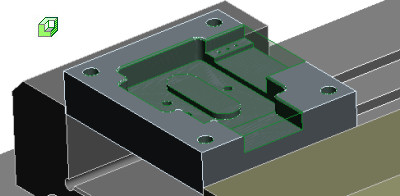
    • Select Preview to see the detected face feature with soft blue wall
    • Select OK to create the feature.

The material removal icon    allows you to toggle the stock model to display its current state taking into account all the machining features created.


 Creating a Channel feature

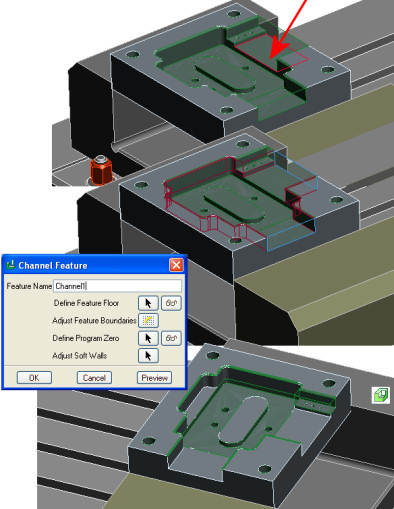
The purpose of a channel feature is for general material removal that takes place on the edge of the part and/or on the edges of other features. A channel feature is a blind feature.
A channel feature has a hard floor. The wall of the channel consists of multiple alternating chains of hard and soft walls. There must be at least two chains of each type present in equal numbers.

  • Choose the Channel icon   or NC Create / Features / Channel
  • Select one of the horizontal faces of a soft wall for the part.
  • Select OK then Done/ Return to come back to the Channel Feature dialog
  • Select Preview to see the detected channel feature with soft blue wall and red hard wall
  • Select OK to create the feature.

The material removal icon    allows you to toggle the stock model to display its current state taking into account all the machining features created.


 Creating a Step feature

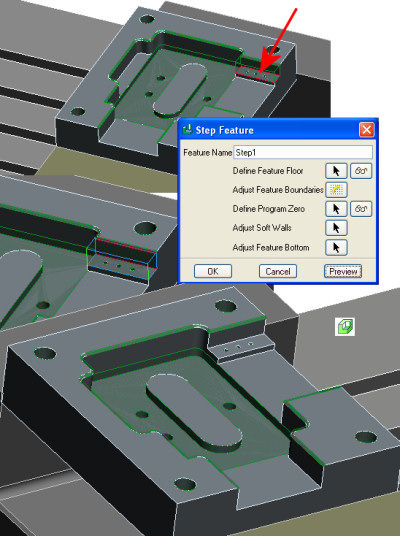
The purpose of a step feature is for general material removal that takes place on the edge of the part or on the edges of other features.
There are two possible forms of a step feature. Both forms have a hard floor:

  • Form 1 consists of a single chain of hard wall and a single chain of soft walls that together form a closed loop.
  • Form 2 consists of a single chain of hard wall that forms a closed loop in and of itself and a single chain of soft walls that form a closed loop in and of itself. These two loops do not intersect each other.

In our case, the step we are going to create is type 1.

  • Choose the Step icon   or NC Create / Features / Step
  • Select the top face of the step on the side of the channel feature.
  • Select OK then Done/ Return to come back to the Channel Feature dialog
  • Select Preview to see the detected step feature with soft blue wall and one red hard wall
  • Select OK to create the feature.

The material removal icon    allows you to toggle the stock model to display its current state taking in to account all the machining features created.


 Creating a Pocket feature

The purpose of a step feature is for general material removal that takes place on the edge of the part or on the edges of other features.
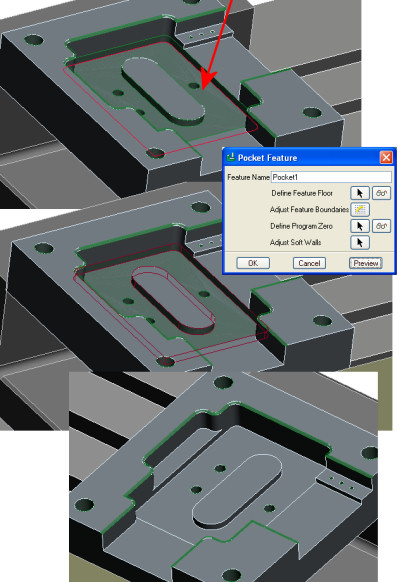
A pocket consists of a hard floor and one or multiple single closed loops of hard walls. A pocket has no soft wall.

  • Choose the Pocket icon   or NC Create / Features / Pocket
  • Select the bottom floor of the pocket.
  • Select OK then Done/ Return to come back to the Channel Feature dialog
  • Select Preview to see the detected step feature with  red hard walls (external + island) 
  • Select OK to create the feature.

The material removal icon    allows you to toggle the stock model to display its current state taking in to account all the machining features created.


 Creating Hole Group features

The purpose of a hole group feature is to group all holes that have the same machining requirements into a single feature.
A hole group feature consists of one or more individual holes.
For this model we will create three hole group features.

  • Choose the Hole Group icon   or NC Create / Features / Hole Group 
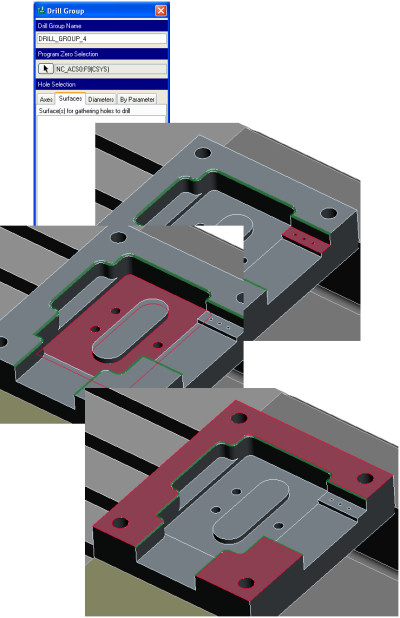
  • We can select individually all the holes we want to group or use a selection rule. In this case we will use surface to select all the holes intersecting the selected surface.
    • Select surface tab in the hole group dialog
    • Select Add. For example, select the step feature floor, then OK to validate the selection.
    • Return to the Axes tab to see that 3 holes have been detected.
    • Select OK to create the hole group
  • Repeat the hole group creation two times using :
    • Pocket floor surface
    • Top part surface

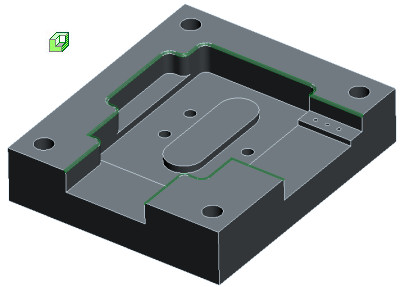
The material removal icon    allows you to toggle the stock model to display its current state taking in to account all the machining features created.The only remaining material is the chamfer on top of the part. This is an advanced machining feature and will not be covered in this tutorial.

Save    the model XM1.mfg


© PTC Product Management