Exercise 3 - Creating Basic Toolpaths

In this exercise you will learn how to create toolpaths for the machining features defined in the previous exercise.

Retrieve  in Pro/ENGINEER the XM1.mfg model created in exercise 2.


You should see the complete stock model without material removal features displayed. If the display shows the features removed from the stock model, then select the  icon to disable the display of features.

Creating Facing Toolpath

First we are going to face the top of the part using the fm-0400-20 solid tool defined in the first exercise and loaded in the workcell.

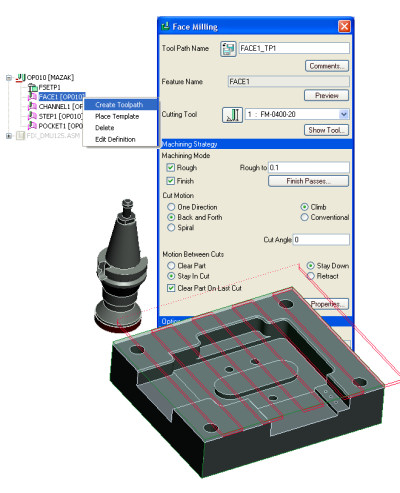
    • Select the FACE1 feature in the model tree, right-click Create Toolpath. This brings you to the Face Milling definition dialog with the internal defaults.
    • Select FEM-0400-20 from the Cutting Tool pull down. Note that the Play Path and OK button of the dialog become available. You have successfully done the minimum definition to create the toolpath.
      • Select Play path to see the results of the default selection
      • In Play Path select the right arrow    to start the simulation
      • Close Play Path when finished to come back to the toolpath creation dialog.
    • Let's optimize this toolpath
      • Check Finish, to do both roughing and finishing in this toolpath
      • Select Back and Forth for the Cut Motion scan
      • For the Motion Between Cuts, select Stay in Cut, Clear Part on Last Cut and Stay Down.
      • Select Play path to see the results of your modification.
      • In Play Path select the right arrow    to start the simulation
      • Close Play Path when finished to come back to the toolpath creation dialog
      • Select OK to create the toolpath feature.

The stock model is updated to display the result of the toolpath.


 Creating Channel Toolpath

Let's machine the channel feature. We will use two toolpaths to do it, an initial roughing toolpath leaving some stock with a large tool  and a second finishing toolpath with a smaller tool.

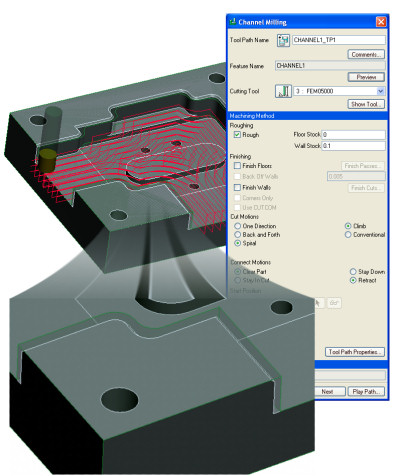
    • Select the CHANNEL1 feature in the model tree, right-click and select Create Toolpath. This brings you to the Channel Milling definition dialog with the internal defaults.
    • We are going to create a 1/2'' Flat End Mill tool for the roughing :
      • Select the Cutting Tool manager   in the Channel toolpath dialog
      • The tool is defined in the tool setup dialog using parameters describing the tool geometry 
        • In the tool setup dialog, select to create an End Mill 
        • Change tool name to FEM05000 and set diameter to .5", flute Length to .5" and total length to 2".
        • Then select Apply to create the tool
        • Select OK to exit the Tools Setup dialog
    • For the roughing toolpath, we will leave a stock of 0.1 on the wall and no stock on the floor.
      • Set Floor Stock to 0 and Wall Stock to 0.1
      • Keep the other defaults
      • Select Play path to see the results
      • In Play Path select the right arrow    to start the simulation.
      • Close Play Path when finished to come back to the toolpath creation dialog.
    • Select OK to create the toolpath feature.
    • The stock model is updated to display the result of the toolpath. Notice the remaining material on the wall of the channel feature.


The toolpaths and process used in the tutorial do not always represent the best way to machine the part or  features.  For this example, we recommend you keep the roughing tool and rough all the features. For this exercise, we will machine feature by feature.

We are now going to use a smaller tool to finish the channel feature :

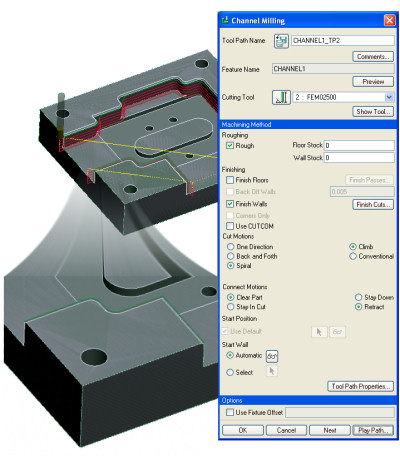
      • Select the CHANNEL1 feature in the model tree, right-click and select Create Toolpath. This brings you to the Channel Milling definition dialog with the internal defaults.
        • Select FEM02500 from the Cutting Tool pull down 
        • Un-check Rough and check Finish wall. Set the Wall Stock to 0
        • Select Play path to see the results
          • In Play Path select the right arrow    to start the simulation
          • Close Play Path when finished to come back to the toolpath creation dialog
        • Select OK to create the toolpath feature.
    • The stock model is updated to display the result of the toolpath. All the material in the channel feature has been removed.


 Creating Step Toolpath

Let's machine the step features.

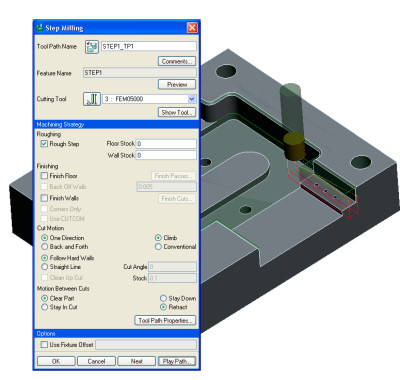
    • Select the STEP1 feature in the model tree,        right-click and select Create Toolpath. This brings the Step Milling definition dialog with the internal defaults.
      • Select FEM05000 from the Cutting Tool pull down
      • We are going to machine the feature in one toolpath. Set the Floor Stock and Wall Stock to 0
      • Select Play path to see the results
      • In Play Path select the right arrow    to start the simulation
      • Close Play Path when finished to come back to the toolpath creation dialog
    • Select OK to create the toolpath feature
    • The stock model is updated to display the result of the toolpath. Notice the remaining material on the wall of the step feature.
   

 Creating Pocket toolpath

Let's machine the pocket feature. We will use two toolpaths to do it, an initial roughing toolpath leaving some stock with a large tool  and a second finishing toolpath with a smaller tool.

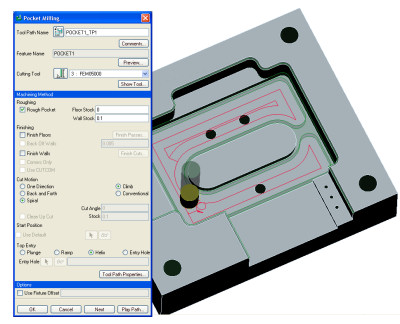
    • Select the POCKET1 feature in the model tree, right-click and select Create Toolpath. This brings the Pocket Milling definition dialog with the internal defaults.
      • The current tool FEM05000 is selected by default
      • For the roughing toolpath, we will leave a stock of 0.1 on the wall and no stock on the floor.Set Floor Stock to 0 and Wall Stock to 0.1
      • Set Helix for entry strategy
      • Keep the other default
      • Select Play path to see the results
      • In Play Path select the right arrow    to start the simulation.
      • Close Play Path when finished to come back to the toolpath creation dialog
      • Select OK to create the toolpath feature
    • The stock model is updated to display the result of the toolpath. Notice the remaining material on the wall of the channel feature.
    • We are now going to come back with a smaller tool to finish the pocket feature:

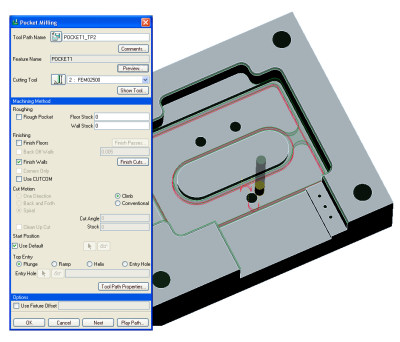
      • Select again the POCKET1 feature in the model tree, right-click and select Create Toolpath. This brings the Pocket Milling definition dialog with the internal defaults.
      • Select FEM02500 from the Cutting Tool pull down. 
      • Un-check Rough and check Finish walls. Set the Wall Stock to 0
      • Select Play path to see the results
      • In Play Path select the right arrow    to start the simulation
      • Close Play Path when finished to come back to the toolpath creation dialog
      • Select OK to create the toolpath feature
    • The stock model is updated to display the result of the toolpath. All the material in the Pocket feature has been removed.


 Creating Holemaking Toolpath

To finish the part, we need to create a toolpath for the Drill Group features. 

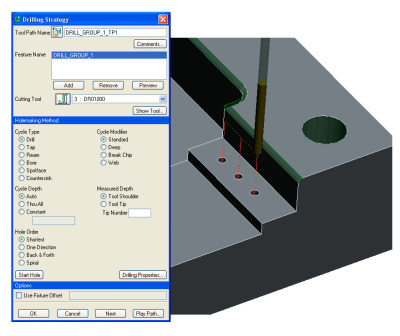
    • Select the DRILL_GROUP1 feature in the model tree, right-click and select Create Toolpath. This brings the Drilling Strategy definition dialog with the internal defaults
    • We are going to create a .1'' drilling tool for the roughing:
      • Select the Cutting Tool manager   in the Channel toolpath dialog
      • The tool is defined in the tool setup dialog using parameters describing the tool geometry 
        • In the tool setup dialog, select to create a drilling tool 
        • Change tool name to DR01000 and set diameter to .1", flute Length to 1" and total length to 2".
        • Then select Apply to create the tool
        • Select OK to exit of the Tools Setup dialog
      • Keep the defaults
      • Select Play path to see the results
      • In Play Path select the right arrow    to start the simulation.
      • Close Play Path when finished to come back to the Toolpath Creation dialog.
    • Select OK to create the toolpath feature
    • The stock model is updated to display the result of the Toolpath. Notice the remaining material on the wall of the channel feature.


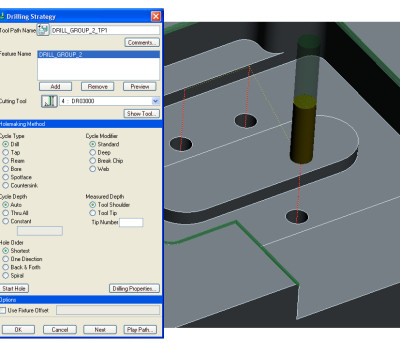
    • Repeat for the other DRILL_GROUP2 after creating a DR03000 (0.3'' diameter).


Save    the model XM1.mfg


© PTC Product Management